
Canvas Tables for Confluence
Best Table App for Confluence - Powerful Spreadsheet-Style Tables with Sorting, Filtering & Formulas for Better Data Management
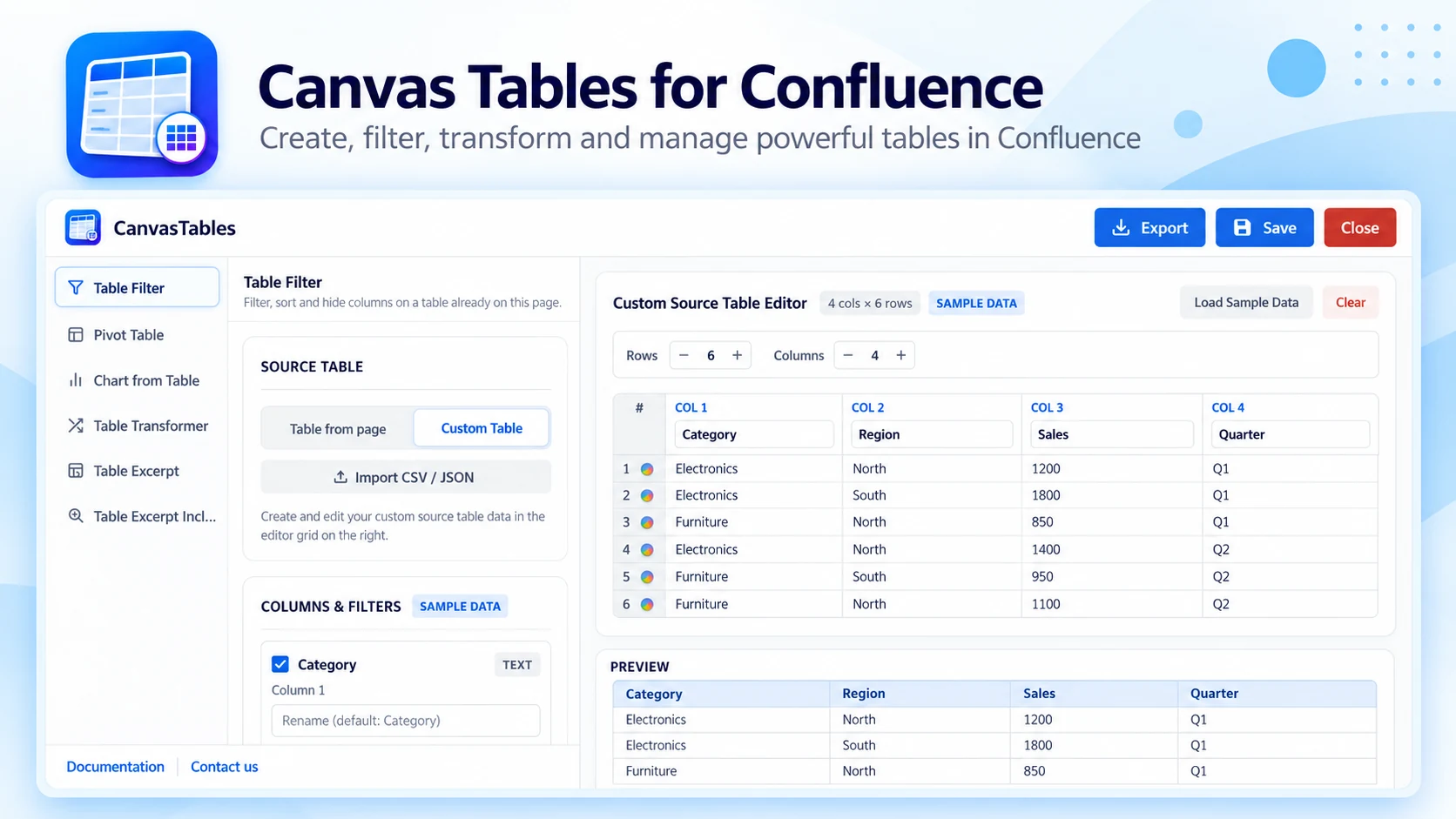
What Canvas Tables does
Create clean, spreadsheet-style tables directly in Confluence pages — with sorting, filtering and formulas — to organise information and present data clearly without leaving Confluence.
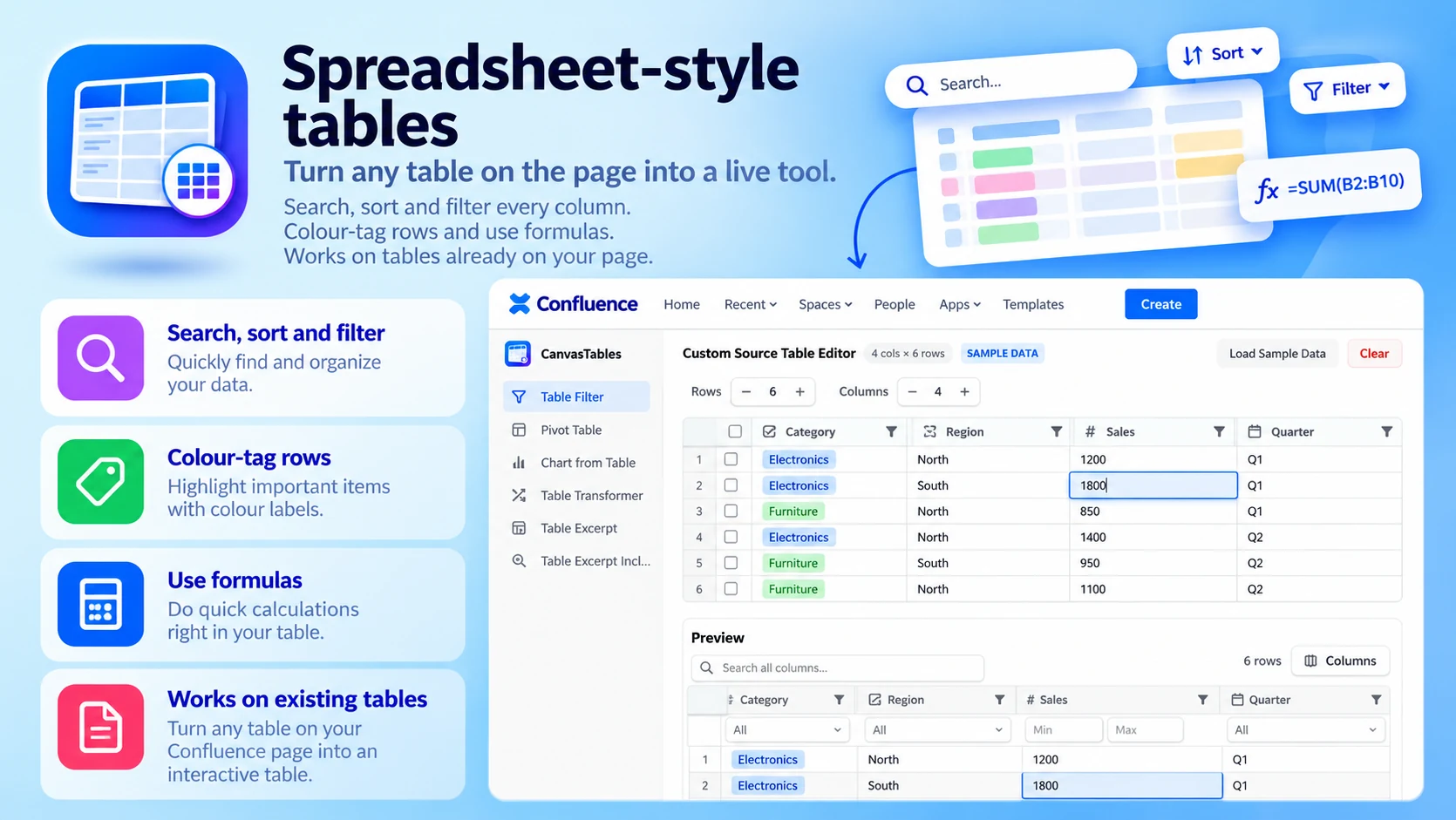
Spreadsheet-style tables
Turn any table on the page into a live tool:
- Search, sort and filter every column
- Colour-tag rows and use formulas
- Works on tables already on your page
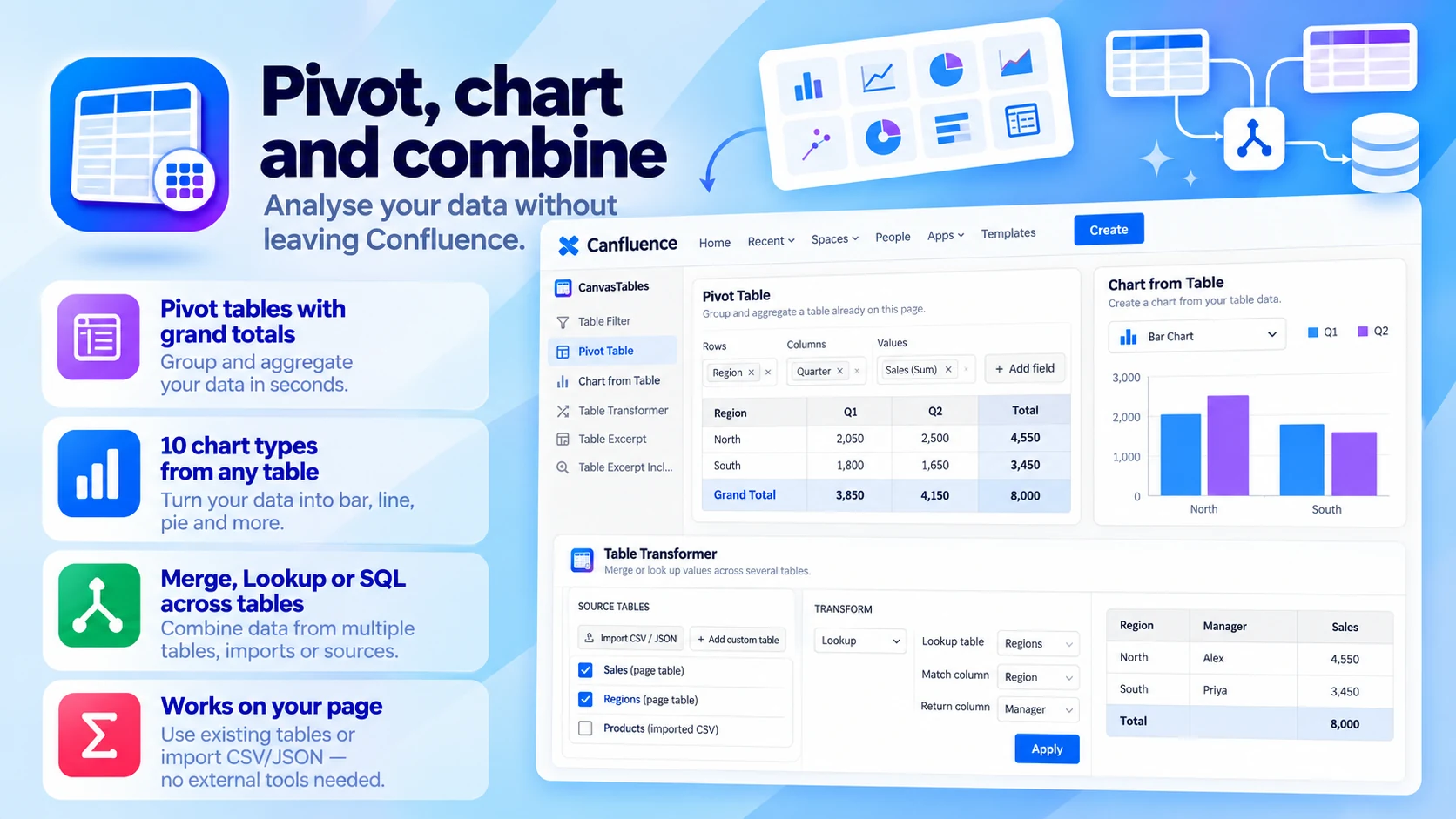
Pivot, chart and combine
Analyse your data without leaving Confluence:
- Pivot tables with grand totals
- 10 chart types from any table
- Merge, Lookup or SQL across tables
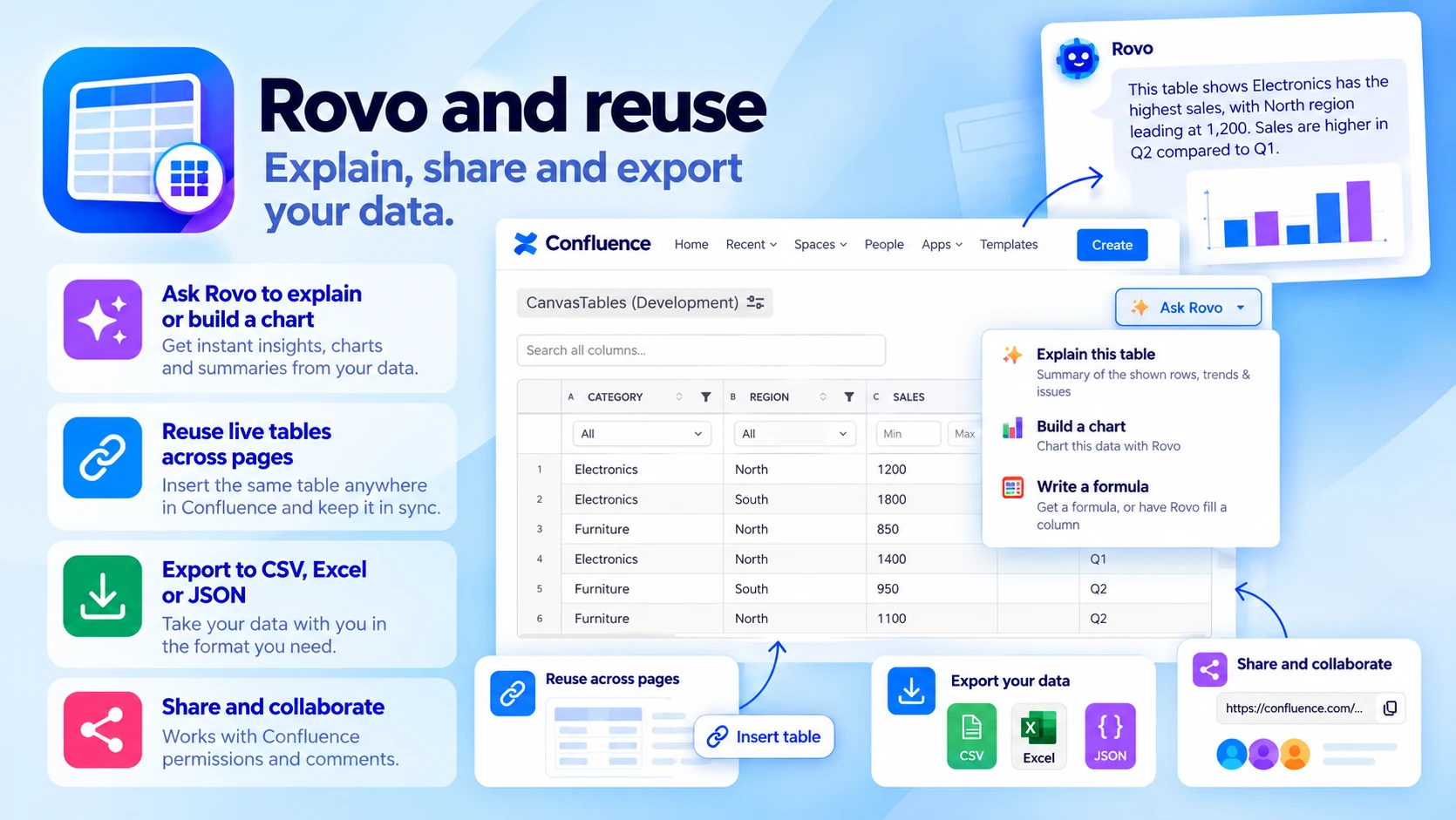
Rovo and reuse
Explain, share and export your data:
- Ask Rovo to explain a table or build a chart
- Reuse one live table across pages
- Export to CSV, Excel or JSON
Built for
- Project plans, task lists and milestones
- Budgets, estimates and status reports
- Requirements and technical documentation
Up and running in three steps
Canvas Tables installs from the Atlassian Marketplace like any other app — nothing to host, nothing to maintain.
- 01
Get it from the Marketplace
Install it on your Confluence Cloud site from its Atlassian Marketplace listing. It's a free app — no licence, no trial clock, no servers to run.
- 02
Add a table
Insert a Canvas Table on a page and add rows, columns and merged cells.
- 03
Format, calculate, publish
Format it, add formulas, and publish a table readers can sort, filter and search.
